1. Start Here

Welcome to the Clinic HQ Manual
This manual is your step-by-step guide to Clinic HQ—built to save time and “cut” down on the workload (no anesthesia required!). Our goal is for this to be your first stop whenever you or your staff have questions, so you can often find answers without opening a help ticket. Each feature is broken down into simple how-to sections, with videos and screenshots where useful.
Accessing HQ
Visit clinichq.com to log in. The only requirement is that you use Google Chrome as your browser.
Finding Information in This Manual
Use the Search tool in the upper-right corner to quickly locate topics.
Learning Clinic HQ
We’ve created clear, easy-to-follow online resources available to you and your staff 24/7. All of our how-to videos are in HQ University. We highly recommend watching them to familiarize yourself with each topic and get the most out of our tools.
Getting Help
Scroll to the bottom of the navigation panel on the left and select Help & Support to view your options.
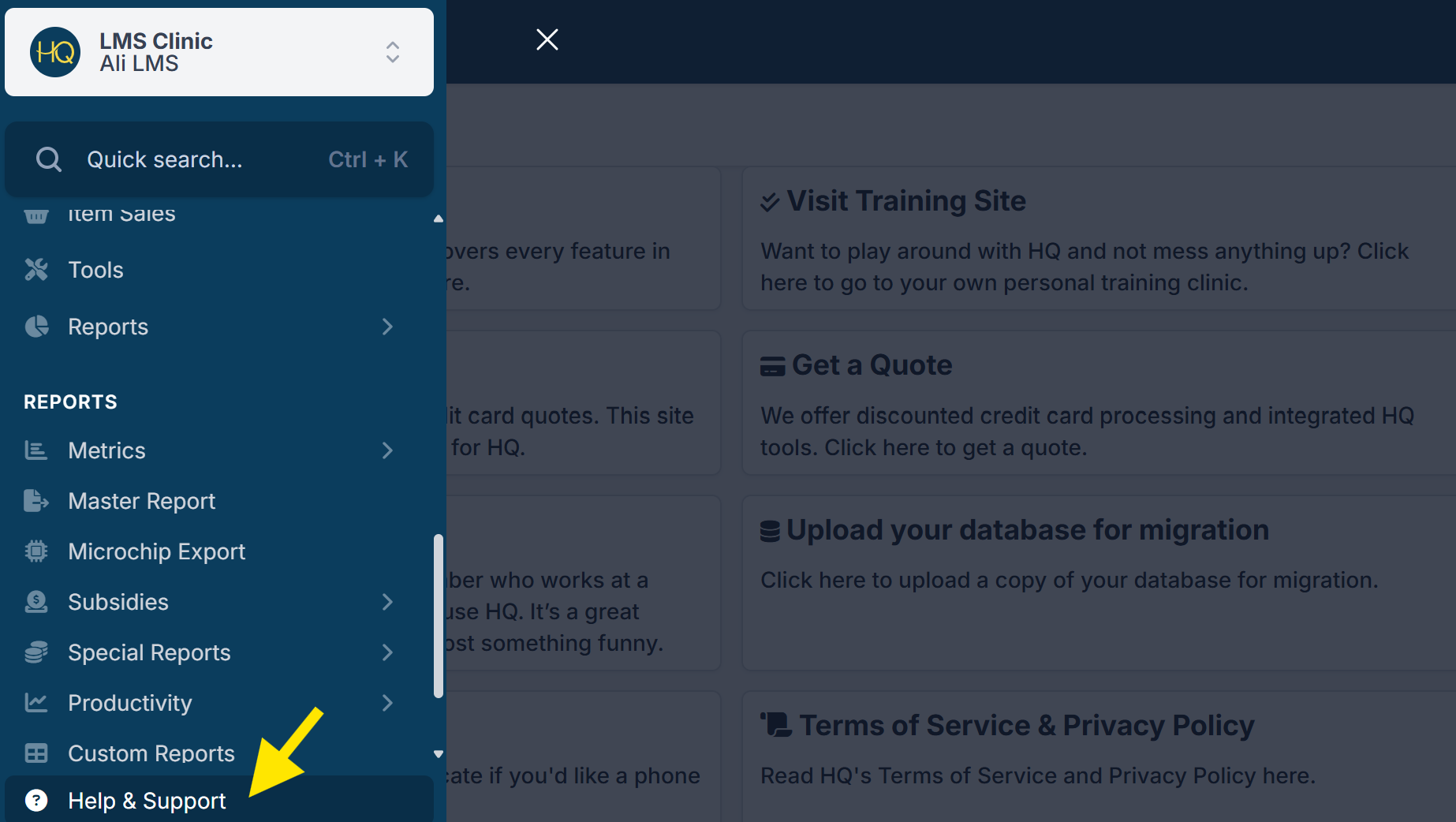
Accessing Your Own Personal Training Clinic
If you’re new to Clinic HQ, one of the best ways to learn is by using your training clinic.
- Go to: Help & Support > Visit Training Site
- The training clinic lets you practice making appointments, checking out animals, and exploring the software without affecting your real clinic.
- Each user has their own personalized training clinic with common default settings, which you can adjust to better match your real clinic.
Connect with the Community
The Spay/Neuter Central Facebook Group is a resource for anyone who works at or volunteers for a spay/neuter or wellness clinic. It’s a space to ask questions, share ideas, and connect with others in the spay/neuter community. While it’s open to everyone in the field, most members are Clinic HQ users, and the group is managed by the Clinic HQ team.
Create your own manual
You may want to create your own manual for yourself or your staff. Here's how:
- Download this manual as a PDF using the button in the lower-left corner.
- Open Microsoft Word > File > Open and select the PDF.
- Word will convert it into an editable copy.
- Edit as needed, then save as a Word document or PDF.
Bookmark Key Resources
Make sure to bookmark these pages for easy access:
Learn how to bookmark pages in Chrome HERE
We hope it's smooth sailing from here, but If you have scoured the manual and still can't find what you are looking for - please open a help ticket.
Happy HQ'ing!