24.14.1. Zebra Set Up
24.14.1.1. Zebra Troubleshooting
If you’re experiencing issues with your Zebra printer, you can use the checklist below to help troubleshoot the problem.
- It's the correct version of the driver (downloaded directly from here)
- Control panel printers - printer is online
- The machine is turned on
- USB is plugged in/Change USB ports
- Default printer is selected in HQ Setting
- Default printer is selected in Zebra Browser Print Setup
- Chrome Setting: Local Network Access is set to Allow
- Chrome is up-to-date
Please refer to the printer model for the correct troubleshooting and resolution tips.
Troubleshooting Checklist
Correct version of the driver
In most cases, issues arise from updates to drivers or your computer. You may need to re-install the driver
- Uninstall Zebra Browser Print. From the search bar, type in "Add or remove programs." Open this application and find Zebra Browser Print. Click on the app section and a button to uninstall should appear. Click Uninstall and follow the prompts.
- Re-Install the driver, follow the instructions here
Printer is online
- On the Windows icon type the word "printer" and select Printers and Scanners.
- Look at the Zebra Printer status for if it is Online
Monitor this section when trying to power on the printer or change ports
Default printer is selected in HQ Setting
- In HQ, go to Settings > Prescription Labels
- Confirm that the Default Printer is set to Zebra and Label Size is 2 1/8 × 2 3/4
- If this needs to be updated, click Printer Settings and update selections
Default printer is selected in Zebra Browser Print Setup
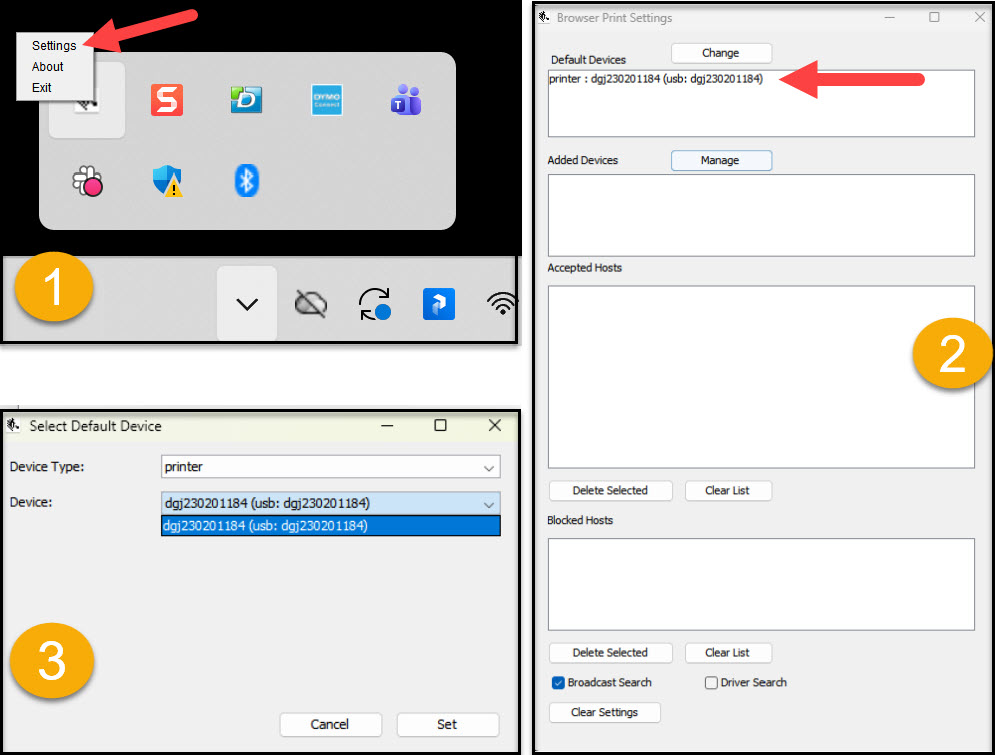
Confirm that there is a Default Printer selected in Browser Print Setup.
- Open Zebra Browser Print Setup by clicking the up-arrow in the bottom right of your taskbar to show hidden icons. On the Zebra icon, right click and select Settings
- Check to see if the Zebra printer is listed under the Default Printers section, if not, select Change
- On the Change screen, select Device Type: Printer and select your Zebra printer from the Device dropdown
Chrome Setting: Local Network Access is set to Allow
Confirm the Local Network Access is set to Allow, and if not, update setting.
- To do so, in Chrome, click the 3 dots in the upper right-hand corner and click Settings.
- Select Privacy and security > Site Settings > clinichq.com.
- Scroll all the way to the bottom and you will see the Local Network Access setting, make sure that is set to Allow.
Chrome is up-to-date
- Is the Chrome browser up to date? HQ recommends you do this regardless of whether it's the cause of your issue.
- Have you cleared the browser cache recently? HQ recommends you do this regardless of whether it's the cause of your issue.
Error Message: "It was not possible to save the prescription and/or load the label. Please review checkout info. Common mistake is vet name not filled.” Error
This error indicates that a key component to the print order is missing.
Here are some things to look for:
- Is the veterinarian listed on the Treatment Sheet?
- Is the vet's license number saved in their vet profile?
- Does the animal have an ID#? (this is assigned when the patient is checked in.)
Contacting Zebra Support
If none of the resolutions above solve your issue, please call Zebra at 1-877-275-9327 (Inside US) or 1-669-231-7099 (Outside US). You may also open a help ticket with Zebra HERE