Scheduling
4.11. Multi-Clinic Considerations
If your clinic operates in multiple locations, HQ ensures that client and patient information is shared across all clinics. This means records are always accessible, no matter where a patient is seen.
If your clinic operates in multiple locations, HQ ensures that client and patient information is shared across all clinics. This means records are always accessible, no matter where a patient is seen.
Switching Between Clinics
Multi-clinic scheduling allows you to:
- Manage multiple locations.
- Separate scheduling between high-volume clinics and others.
Key points:
- All clinics share a back-end database. Patient records are available across all locations.
- You can toggle between clinic schedules using the Profile drop-down.
- Most features—such as calendars, accounting, settings, and reports —are separate for each clinic.
- The Master Report combines data from all clinics into one summary.
This setup allows each clinic to operate as its own entity while still sharing patient records.
One Link
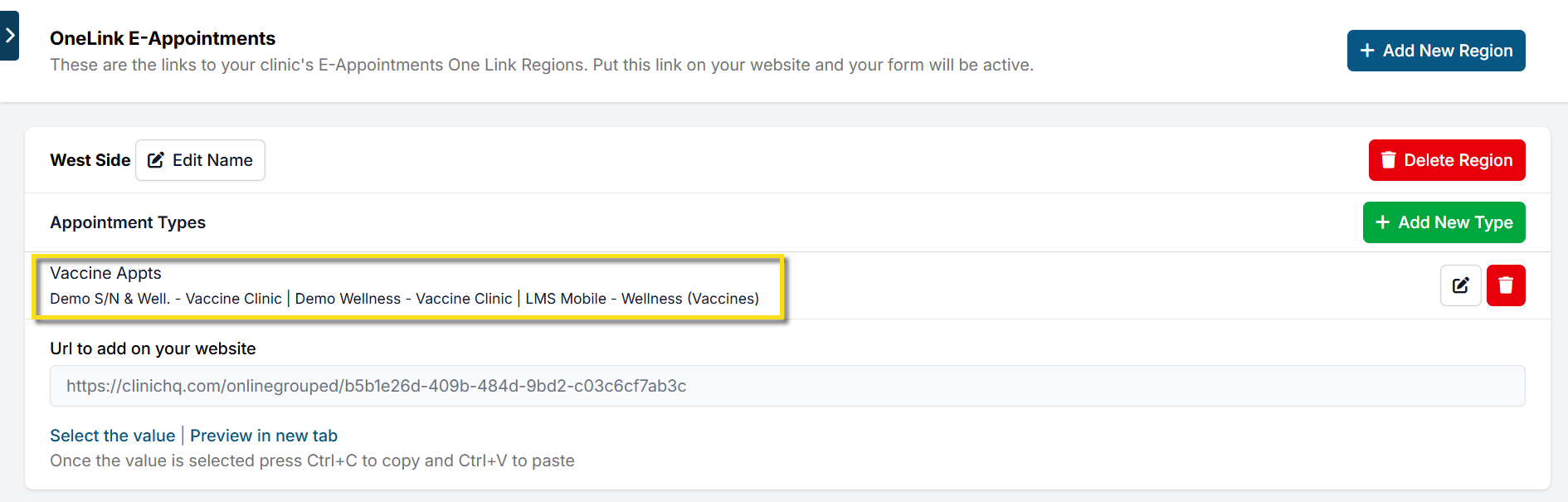
One Link is designed for multi-clinic operations. It provides a single online booking link that shows clients the soonest available appointments across all locations.
This is especially useful for mobile units or clinics covering different regions (e.g., east side vs. west side).
Setting Up One Link:
- Go to Settings > OneLink E-Appointments (bottom of the left-hand panel).
- Click +Add New Region to create a region name (e.g., West, East).
- Add appointment groups:
- Click +Add New Type (e.g., Vaccines, Spay/Neuter, Dentals). #_ Assign clinics and appointment types to each group.
- Click Save.
- To post the master link on your website:
- Copy the URL value from the One Link page.
- Paste it into your site or embed it as a booking button.