Custom Reports

HQ's custom report allows you to mix and match datasets in order to provide you with the perfect report for what you need!
Need to know how many Pitbulls you spayed/neutered last year - run a custom report! Want to know the email address of all your public clients that visited in April - run a custom report. This report section is one of the most used reports in Clinic HQ!
TIP When running custom reports, if you select every field, you may overcomplicate the results pulled. If you feel your results are not accurate, try tweaking the filters applied. Certain filters such as test results will only pull animals that have a test result.
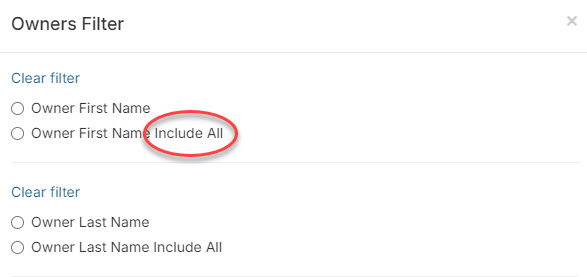
What is the difference between a filter when it has "Include" vs. "Include all?"
The "Include All" filter will show all appointments, whether or not the selected field contains information.For example, if you're filtering by Owner's Secondary Phone, and you choose:
- Include – You'll only see appointments where the client has a secondary phone number listed.
- Include All – You'll see all appointments, including those where the secondary phone field is blank.
Use "Include All" when you want a complete list, even if some data is missing—such as collecting contact information where not every client has filled out every field.
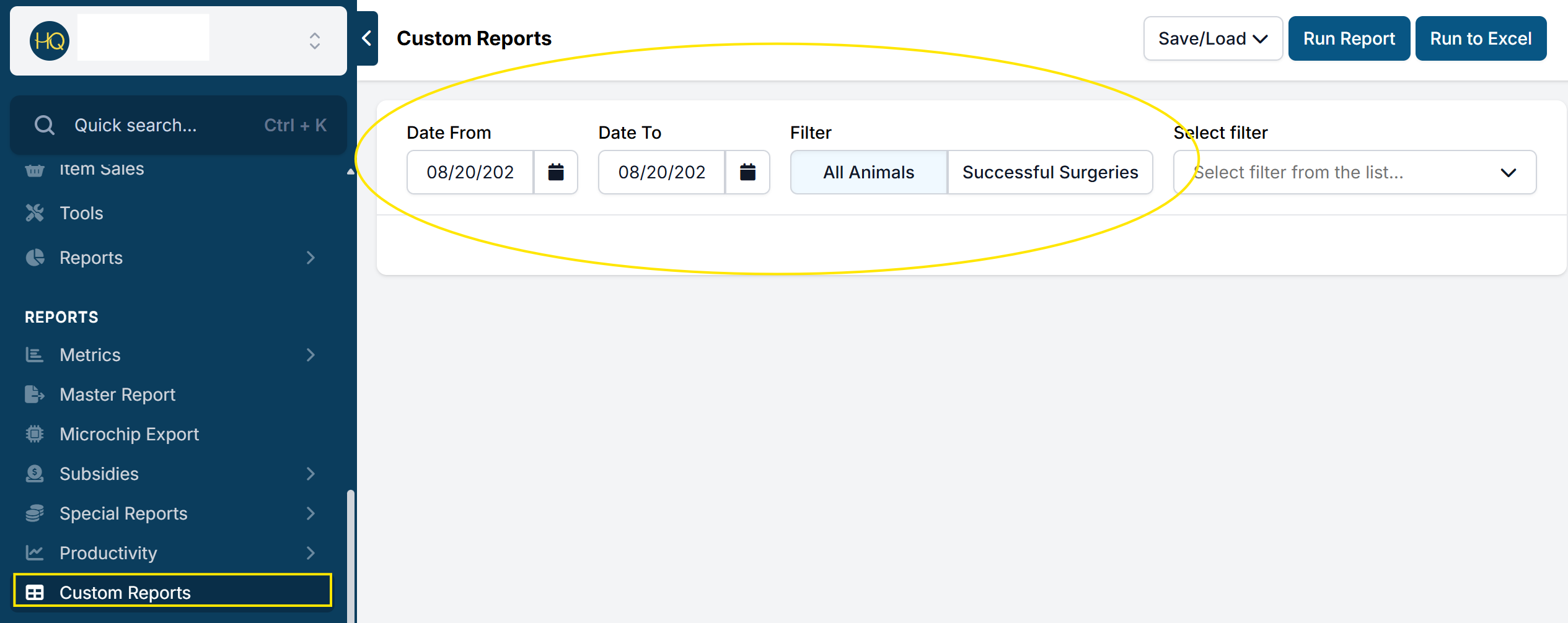
- Start by selecting the time period for your report and choosing whether to include all animals or only successful surgeries.
- "Successful surgeries" include all animals admitted for surgery, excluding those marked as deceased (including euthanasia by owner request) or those who declined surgery. Most grants prefer reports based on successful surgeries.
- Look through each of these categories to customize your report: Appointment filters, Recheck filters, Animal filters, or Owner Filters:
- Click each category to apply details to be included in your report.
- When you've finished constructing it, click Run report to view it in HQ or Run to Excel to see a spreadsheet.
List of field types
Appointment Filters
- Location
- Service Items
- Subsidies
- Test Results
- Vet
- Vet Types
- No Surgery Reason
- Death Type
- Custom Fields
- Medical Fields (short tag)
- Internal Medical Notes
Recheck Filters
- Recheck Type
- Recheck Outcome
- External Recheck
Animal Filters
- Species
- Breeds
- Sex
- Colors
- Spay/Neuter Status
- Microchips
- Ownership Status
- Pregnant
- In Heat
- Cryptorchid
- Weight
- Age Years
- Age Months
- Feti
- Behavior Tags
- Trapper
- Rabies
Owner Filters
- Client Type
- Volume Clients
- Owners
- Client Tags
- Zip
- City
- State
- County
Saving Custom Reports
Do you have custom reports that you run frequently? If so, you can save your custom reports filters for easier access and efficiency!
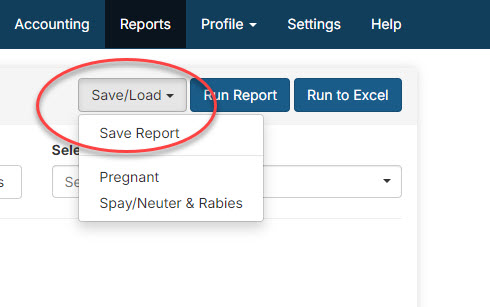
- Once you run your custom report with the filters of your choice, click on the Save/Load option > Save Report
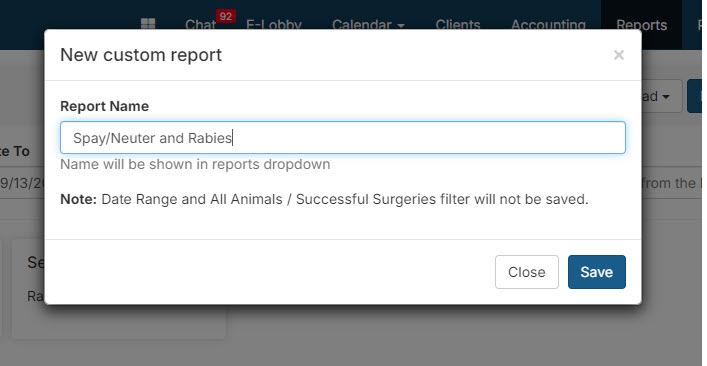
- Once you click on 'Save Report' you will be prompted to name your custom report.
- Once you click Save, you will be able to run this report quickly by clicking on the Save/Load dropdown (pictured below) and choosing the correct report
Please note: You will have to manually choose the date range and All Animals/Successful Surgeries Filter each time you run your saved reports.
Cool Custom Reports
This section will explore the versatility of custom reports, highlight some reports we think your clinic can utilize, and provide a step-by-step guide on generating these powerful data narratives.
Whether it's tracking geographic data or optimizing operational efficiency, custom reports offer a gateway to endless possibilities for data-driven decision-making or figures to present for grant requests.
Vet Specs
The Executive Director report (here) is a fast way to get the total surgeries and complications per vet but if you need to know more, a Custom Report is the way to go.
- With Custom Reports, you can export detailed data on almost any metric, including the veterinarian associated with each appointment. To analyze data by vet, make sure to include the Vet field in your report filters.
- Once exported to Excel, locate the Vet column, then click the “A to Z” icon or the down arrow in the toolbar. From the dropdown, select “Filter”. This will add filter options to the top of each column.
- Click the down arrow on the Vet column to select or deselect veterinarians and view data for specific individuals.
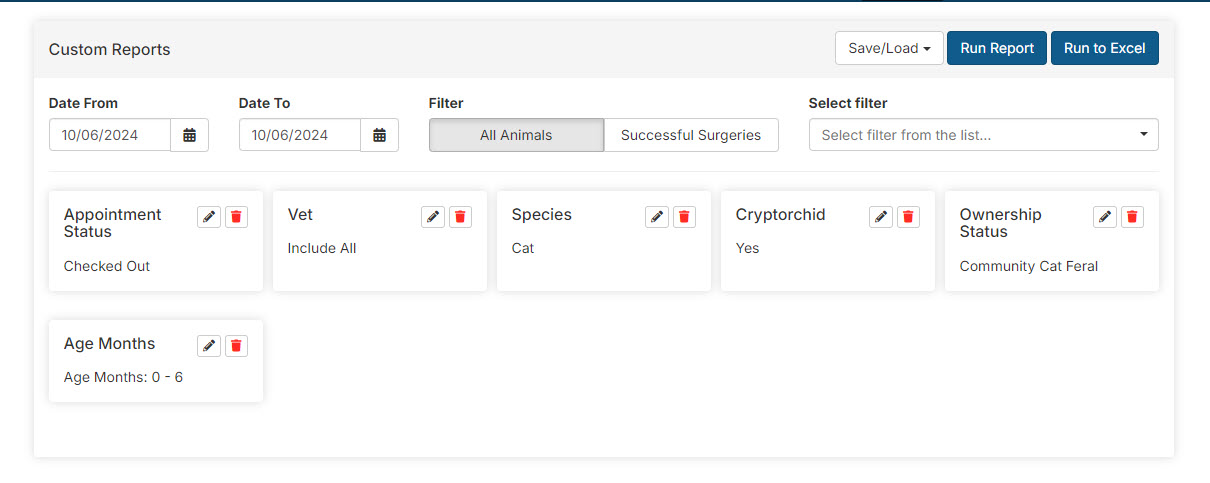
In this example, we are running the number of cryptorchid feral cats under 6 months for the current year by each veterinarian. The report filters will vary depending on exactly your needs, however, in all cases, include the Vet filter. After exporting to Excel, use the column filter to track by each vet's name.
Reviewing Internal Medical Notes to Locate an Animal
Use case example: It's happened before, where a situation comes up and the team needs to recall which animal, on what day, had xyz going on with it. Unfortunately, no one remembers. Instead of digging through records individually for every patient over a large date range, use Custom Reports!
How to extract the data:
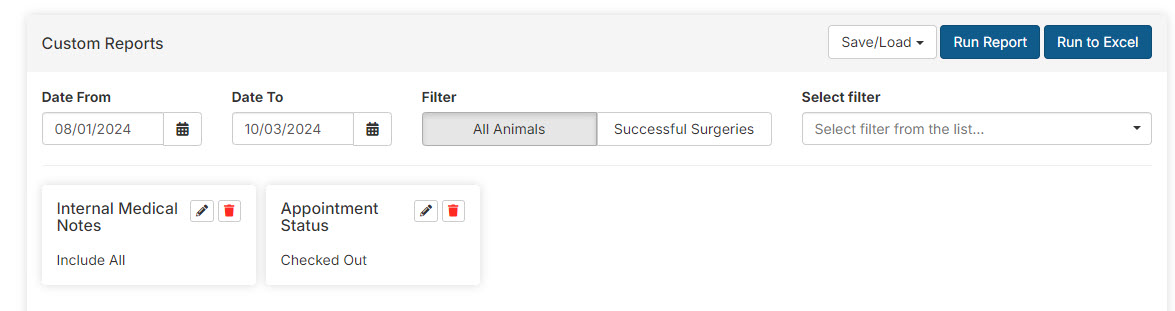
- From the main Custom Report page, choose the date range you would like to look through. ##The middle filter should default to "All Animals." From the dropdown menu, select the following:
- Appointment Status = Checked Out
- Species = Cat or Dog - choose one of the species if you can recall this information.
- Internal Medical Notes - switch this from the default of including all, to just those with Internal Medical Notes.
- Run the report on screen or export it to a spreadsheet.
- With your keyboard press CTRL+F and type in a keyword to highlight matches in the report. Such as "reaction," "ringworm," or "fracture."
Export Client Contact Information
How to extract the data:
- Select the date range to pull clients that visited your clinic during. NOTE: You can only run up to 1 year at a time.
- Leave “All Animals” selected. From the dropdown menu, select the following: (Scroll down to the owner's filters near the bottom of the dropdown)
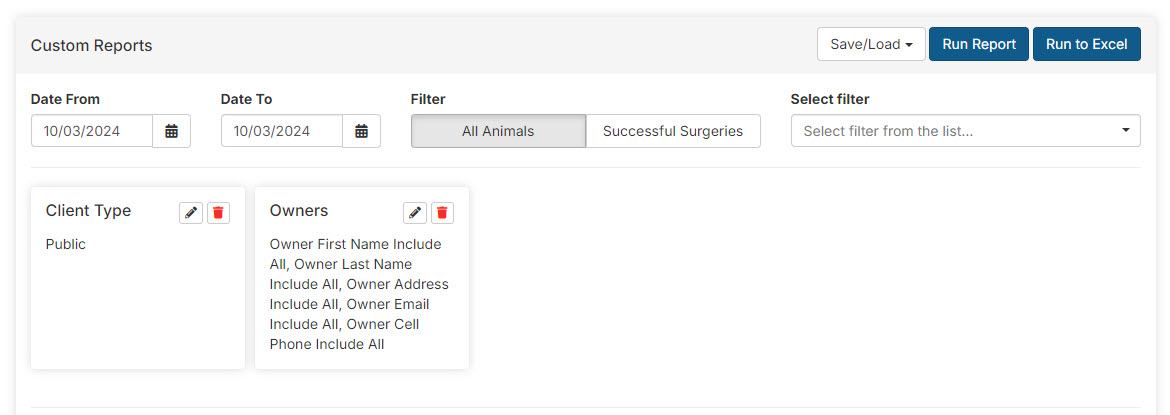
- Client Type = Public
- Owners = Owner First Name Include All, Owner Last Name Include All, Owner Address Include All, Owner Email Include All, Owner Cell Phone Include All
- Click Run to Excel to export all the data to a spreadsheet. Format the spreadsheet to fit your needs - deleting columns of appointment dates, animal ID numbers, etc. Select the email address column and on your Excel toolbar, locate the option to "Remove Duplicates."
If your clinic needs to re-run the same Custom Report regularly, learn how to save the filter selection as a prebuilt report to select from. More on this HERE!
Tracking Colonies

Community or feral cats have additional trapping details collected in HQ that can be queried in Custom Reports.
The animal type must be set to Community Cat (Friendly) or Community Cat (Feral) for the trapper field to appear in appointment details. The Trapper Name and Colony Address are collected here.
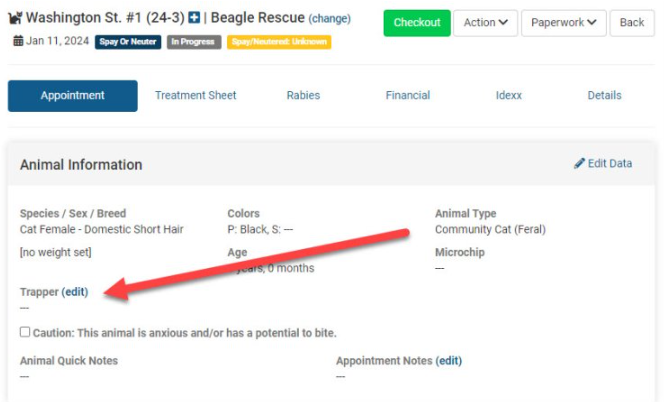
If tracking a colony name, you can include it with the Animal Name, Trapper Name, or create a custom field to collect this data.
Useful Reports for Community Cats
- Patient Metrics Summary > Animals — Total number of community cats seen each month.
- Master Report — Use the date picker and county fields to run a report on animals from a specific county. Export to view sex, maturity, and other details for community cats.
- Custom Report — Filter by Animal Type > Community Cats plus any other filters needed.
Colony Report
To include trapped location data, use a Custom Report.
- Filter by Appointment Status: Checked Out to exclude no-shows, canceled, and pending appointments.
- Within Animal Details, expand the Trapper section and select which trapping details to include.
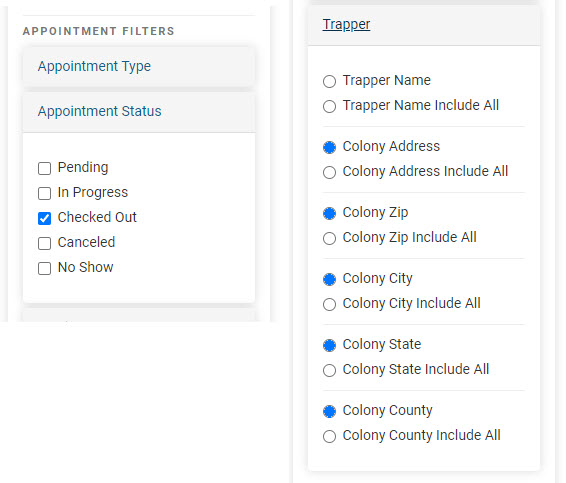
- Click Run to Excel and manipulate the data further in Excel.
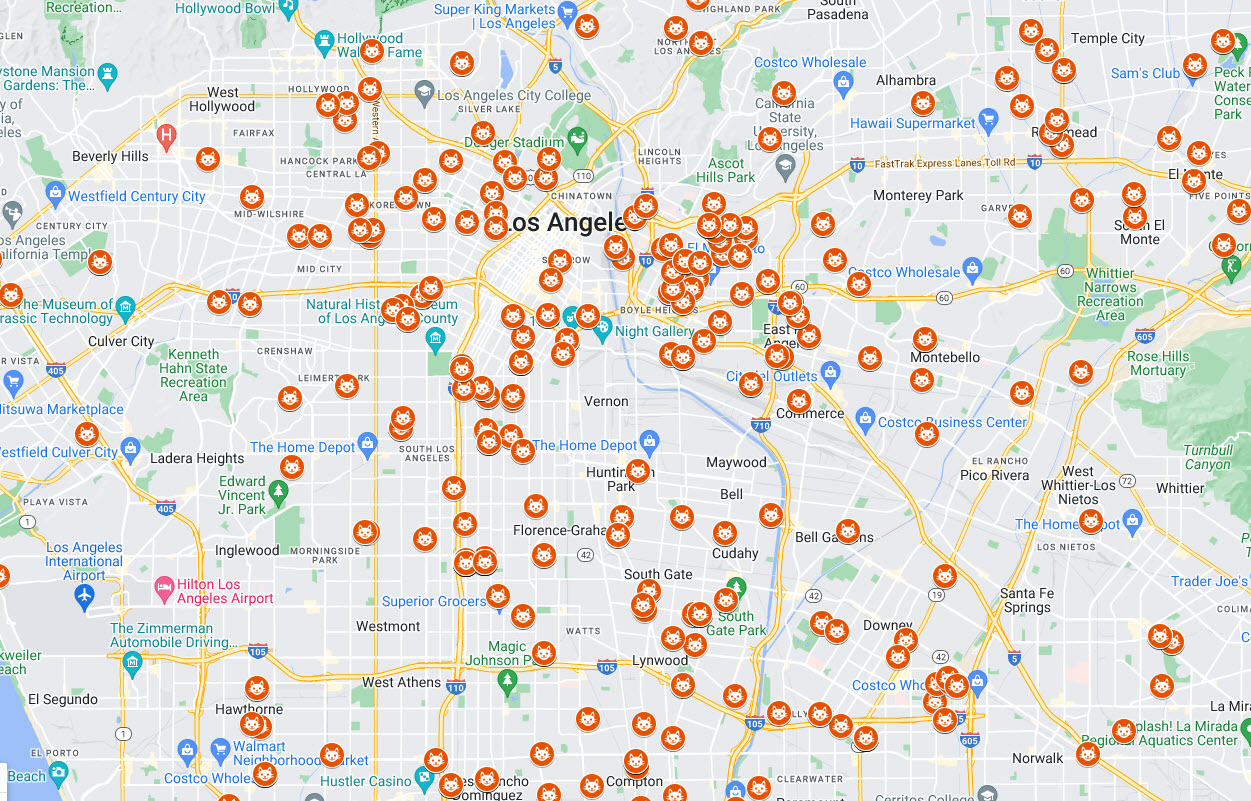
Create a Custom Pinpoint Map
Use Google's My Maps to import colony addresses and create a custom map.
Instructions from Google on how to import your data.
Special Reports

Special Reports includes a section for key funders. As of May 2025 the only report is the PetSmart Charities report — others will be added as they are incorporated.
PetSmart Charities Report
Developed in conjunction with PetSmart Charities, this report includes most metrics required for PetSmart Charities grant reporting. Each metric is annotated with a description of what is and is not included, and the data for each metric can be exported for verification.
"Here is a document":{DOCUMENT-LINK+accelerator-clinic-metrics-master} that outlines the metrics in the PetSmart Charities report.
Navigate to Reports > Special Reports > PetSmart Charities Report.
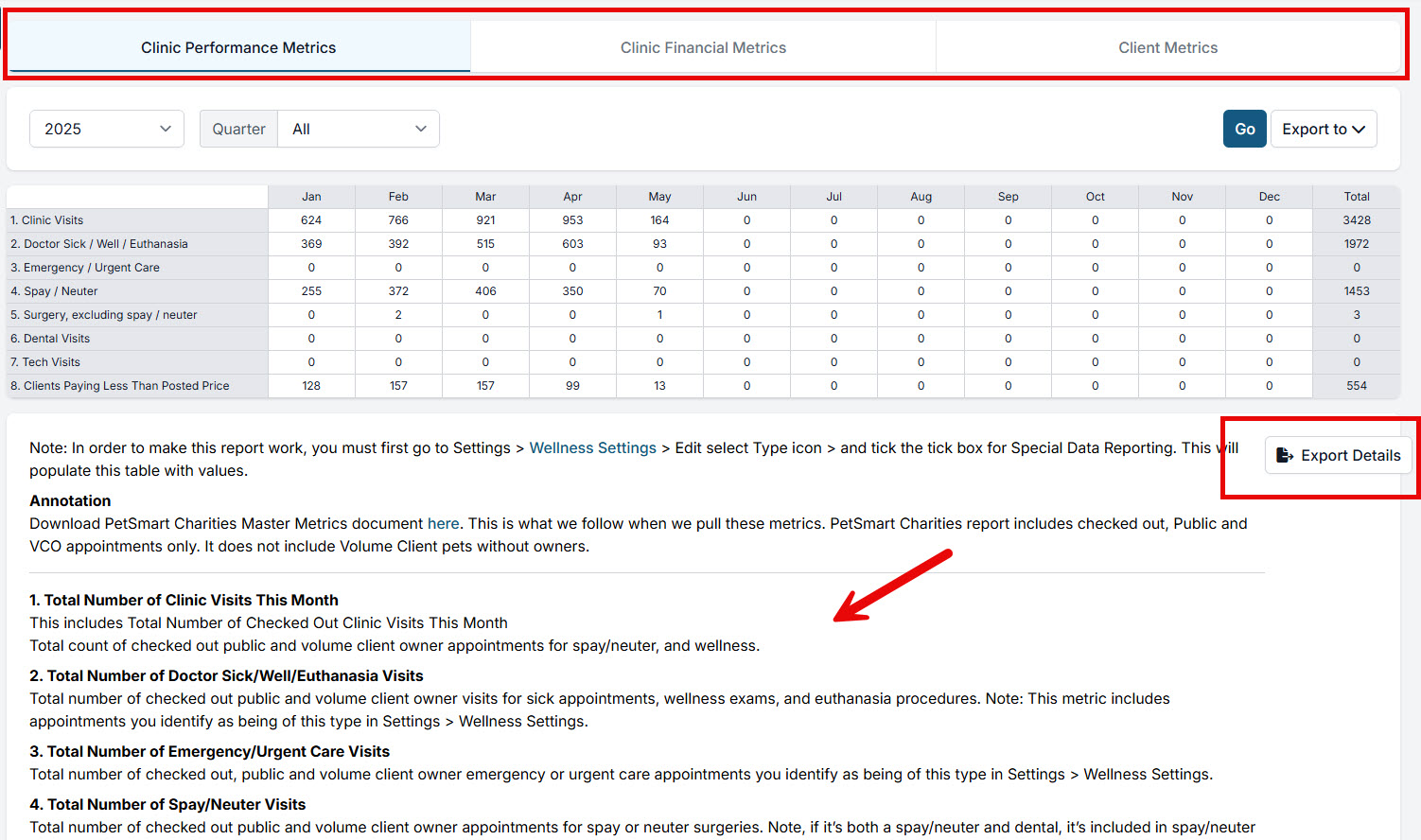
To configure your settings to make the report work, see Configure Special Data Reporting.