5.3.3. Bulking Volume Client Appointments
Volume Client Bulk Appointments
We’ve experimented with ways of letting volume clients make their own appointments. However, we have never been able to find a way that did not cause mayhem. While this may be explored in the future, the focus for now is on making scheduling as quick and efficient as possible. The volume client bulk appointment feature helps you set up hundreds of appointments for the year all at once.
Setting Up Multiple Volume Client Appointments (Bulking Appointments)
Many clinics get repeat business from the same volume clients. For example, a local humane society may have a standing appointment for twenty animals on Tuesday. HQ provides a tool that allows you to make all of these bulk appointments at once.
✅ Pro Tip: Only spay/neuter appointments can be bulked.
Starting the Process
- Go to Clients > Appointments > Volume Client Appointments.
- Change the date picker to a day where you already have volume client appointments scheduled for the client of interest.
- Click the edit button.
** Example: If Tulsa Humane has appointments already scheduled for Tuesday, January 9th, and you want to create appointments for the same group every Tuesday, change the date picker to the 9th.
** If no appointments are scheduled yet for the volume client, set up some on a specific day first, then return to this step.
Bulking Placeholder Appointments
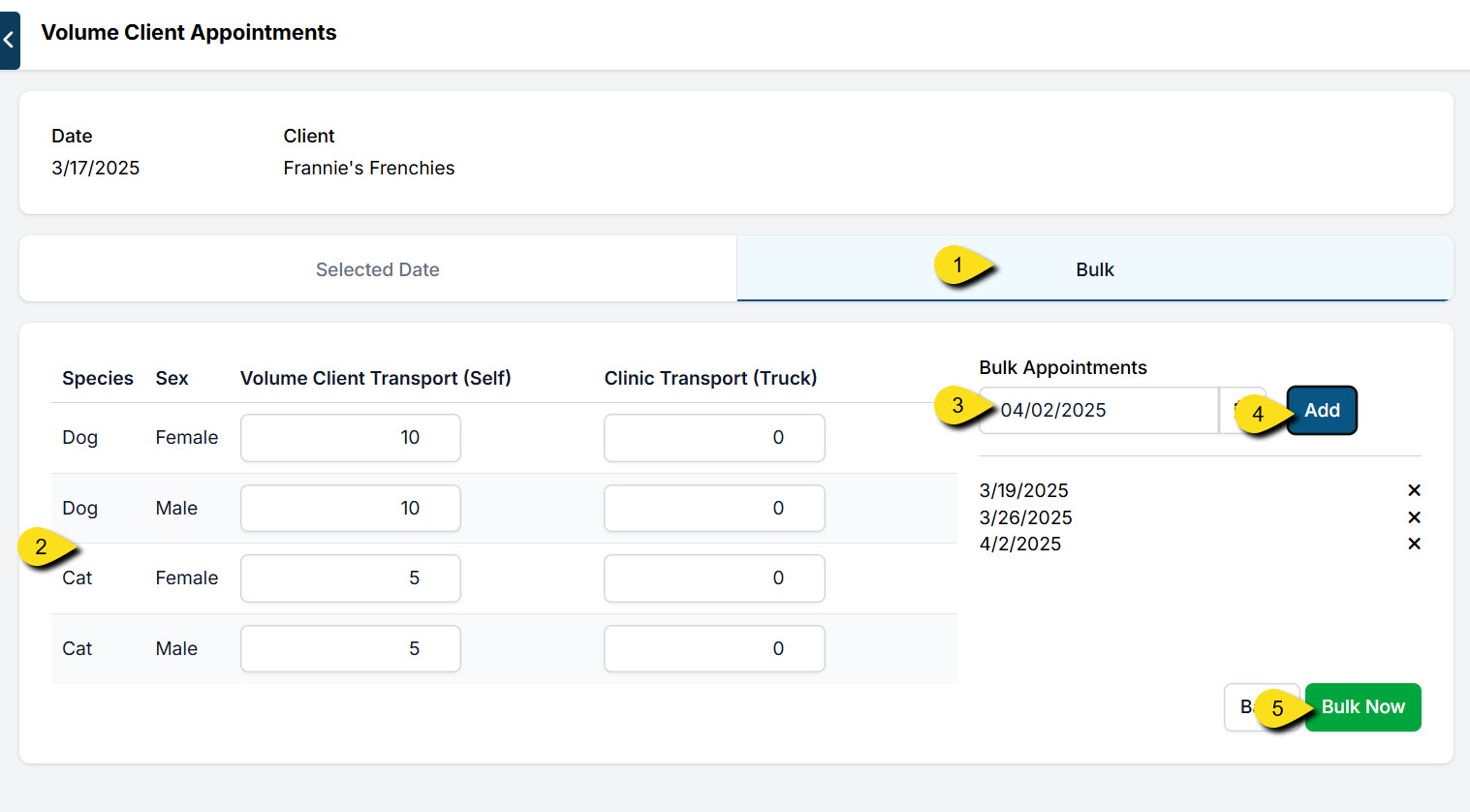
- Click the Bulk tab.
- Fill in the grid with appointment slots.
- Click the calendar icon and select a date.
- Click the Add button. Repeat for all desired dates. Click the Add button after each entry.
- Click Bulk Now. The system will create all of the appointments at once (sometimes hundreds).
5.3.2. Releasing Appointments to the VCP
Appointments will only be available in the Portal for volume clients once they are released, aka. scheduled, for the client. This section will show you how to make appointments available in HQ for a specific volume client.
5.3.4. Managing Volume Client Appointments