13.5. Troubleshooting Subsidies

Subsidies Not Showing Up
There are four common reasons why a subsidy may not appear when you attempt to apply it.
No Funds Available in the Funding Partnership
If there are no funds available in the associated funding partnership, the subsidy will not be offered.
To check the balance:
- Open Settings.
- Select Funding Partnerships.
- Review the balance for the associated partnership.
If the balance is zero, the subsidy will not appear. Add funds to the partnership to resolve the issue.
This rule also applies to subsidy discounts where no money is deducted from the pot. In all cases, the funding partnership must have a balance greater than $0 for the subsidy to be available.
Subsidy Restrictions Are Not Met
Subsidies may include restrictions such as species, breed, or address requirements.
If any restriction is not met, the subsidy will not appear. For example:
- The subsidy is restricted to pit bulls, but the animal is listed as a bulldog.
- The client address is incomplete or does not meet the subsidy requirements.
Review the subsidy restrictions and confirm all criteria are satisfied.
Item Is Not Enabled Within the Subsidy
If the service or product you are attempting to discount is not enabled within the subsidy, it will not appear as an option.
To review enabled items:
- Open Settings.
- Select Funding Partnerships.
- Open the associated subsidy.
- Review the list of items the subsidy covers.
- Enable the missing service or product and click Save.
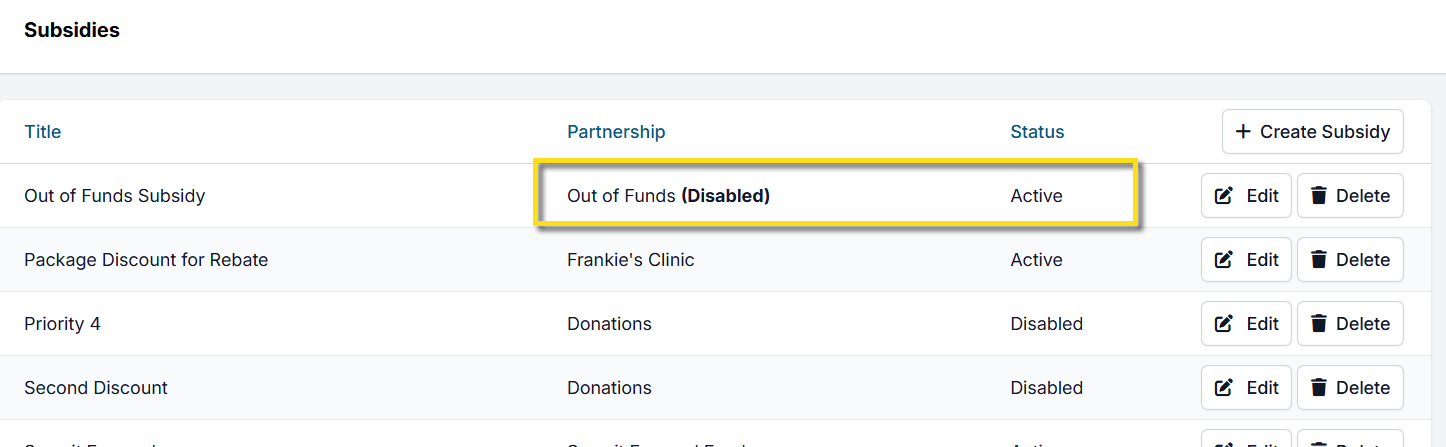
Subsidy or Funding Partnership Is Disabled
If either the subsidy or its funding partnership is disabled, the subsidy will not appear.
To verify status:
- Open Settings.
- Select Subsidies.
- Review the Status column for both the partnership and the subsidy.
- Edit the records and set the status to Active if needed.
- Click Save.
Incorrect Deduction or Invoiced Amount
If the deduction or invoiced amount is incorrect, review the subsidy configuration.
To check values:
- Open Settings.
- Select Subsidies.
- Edit the subsidy.
- Open the Items This Subsidy Covers tab.
- Review the Pot Deduct and Invoiced Amount values.
If you are not intentionally changing the service price, confirm that the New Service Price column has not been edited.
Subsidy Value Is Too High and Cannot Be Applied
This issue most often occurs when the New Service Price column was edited unintentionally.
The New Service Price column is used only in specific scenarios where the base service price must be adjusted before applying a subsidy, such as when multiple subsidies are applied to a single item.
If you did not intend to change the base price:
- Edit the subsidy.
- Open the Items This Subsidy Covers tab.
- Reset the New Service Price to the original service or product price.
- Click Save.
Changing the Funding Partnership on a Subsidy
Once a subsidy is created, it cannot be reassigned to a different funding partnership. This restriction ensures accurate reporting and reduces the risk of errors.
If a different funding partnership is required, create a new subsidy linked to the correct partnership.