19.5.1. Deposits on Internal Appointments
When you make an appointment internally for a client by phone, if your clinic requires a deposit for appointments, you will still need to take a deposit.
Entering A Deposit on an Internal Appointment:
The only time staff enter deposits is when creating an appointment internally. A staff entered deposit will only occur when the client did not enter payment online when they made the appointment.
Here are the steps to make a deposit on an internal appointment:
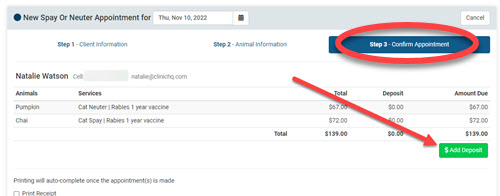
- Enter the appointment data for all animals and click the Confirm Appointment button to go to the last screen of appointment making (Step 3 - Confirm Appointment).
- Here click the Add Deposit button.
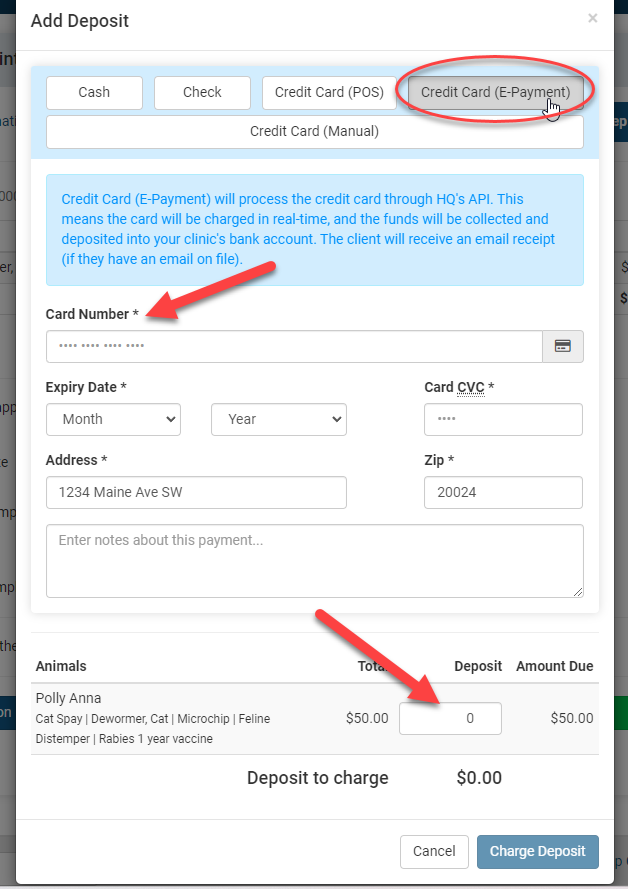
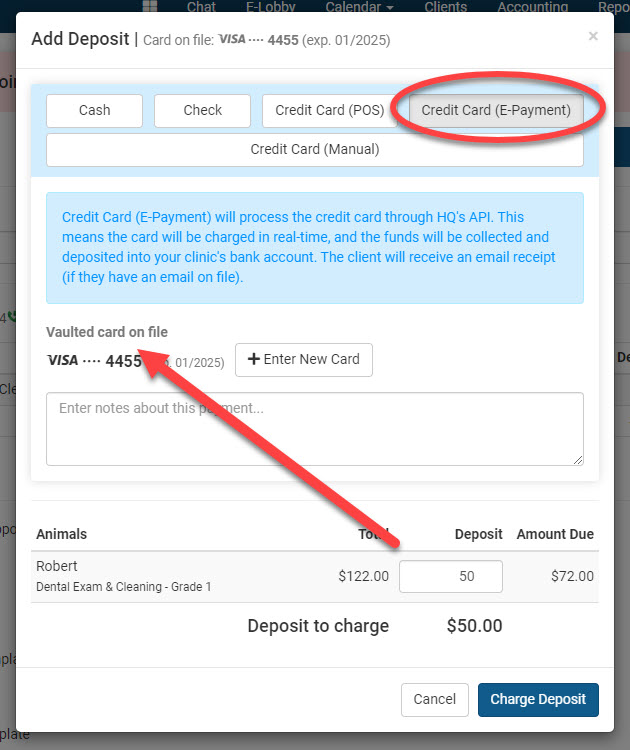
- Choose the Payment Type: Cash, Check, Credit Card. Assuming your clinic is set up with our merchant processing, the most common option for the Deposit Type will be Credit Card (E-Payment). The first thing to note is at the top of the popup if the client already has a card on file. If they do, you can simply use the vaulted card by selecting it. Although the client may want to use a different card and if so you can select the Add New Card button.
- Next you'll input the deposit amounts for each animal. Be careful here. If you make a mistake, you'll need to refund the client and do it all over again. Not a pleasant process.
- Once the deposit amounts are entered, click the Charge Deposit button to charge their credit card.
- When is the client charged?
Immediately. The system will charge the card as soon as you click Save Deposit.
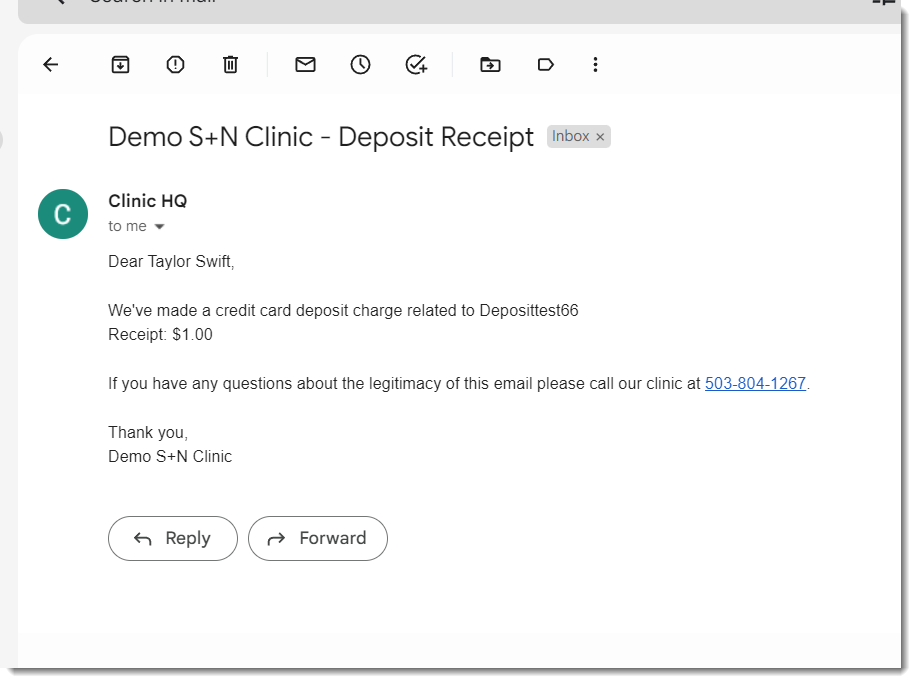
When you make the appointment, the client will get a receipt that looks like this. Note: They will get a receipt no matter the tender type (cash, check, e-payment).
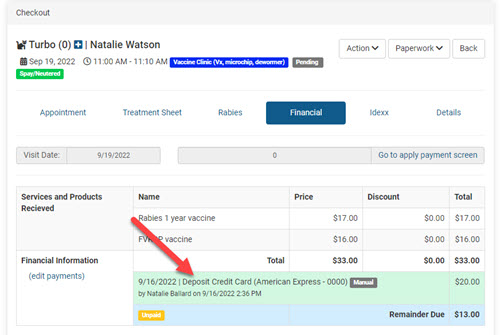
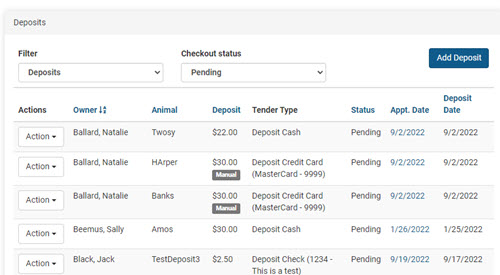
- Carried To Patient Record
The deposit amount is then carried over to the patient record. You can view deposits in Clients > Deposits
- Carried To Reconciliation Report
It’s also carried to the Accounting > Reconciliation report.
- Carried To Financial Report
It’s also carried to the financial export and flagged as a deposit.