1.3.5.6. Recovery Codes
Recovery codes serve as a secure backup option if you lose access to your primary authentication device. These one-time use codes should be stored in a safe location and used only when necessary to regain account access.
Generate Recovery Codes
Once you set up two-factor authentication, you get a list of recovery codes for your account. If you need to reset these codes, go to User Preferences > Two-Factor Authentication > Reset recovery codes.
Storing Recovery Codes
Store your recovery codes in a secure, offline location where only you can access them. Avoid saving them in email, cloud storage, or unencrypted notes. Instead, keep them in a password manager or a physical secure place, such as a locked drawer or safe, to ensure they’re available if you lose access to your authentication device.
Log in with Recovery Code
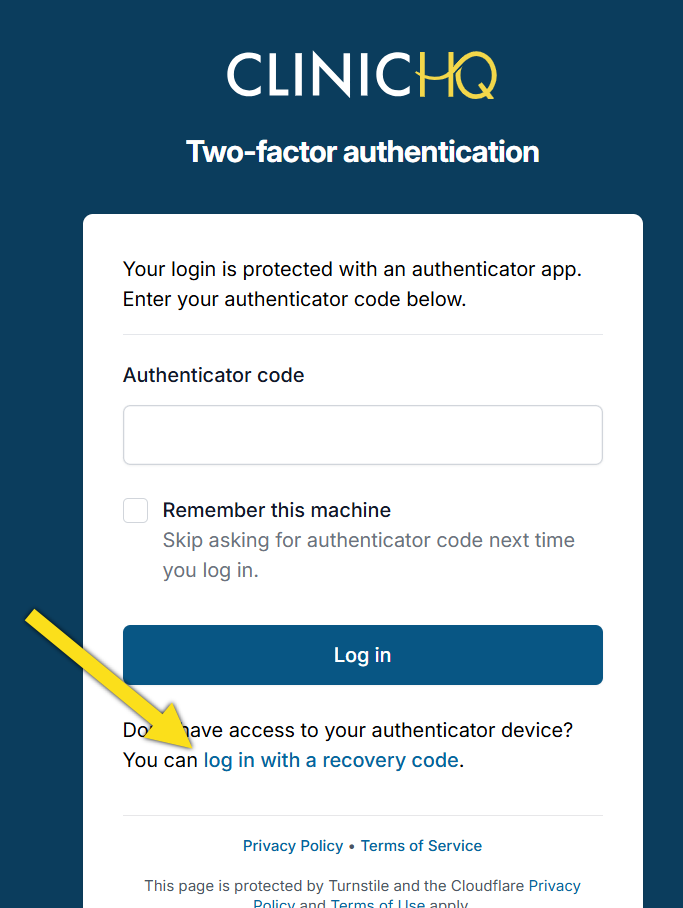
If you do not have access to your authenticator app and need to log in using a recovery code, follow these steps:
- Go to https://clinichq.com/ and click Login.
- Enter your username and password and click Log in.
- Instead of entering an authenticator code, you will click Log in with a recovery code.
- Enter one of your recovery codes and click Log in.