Scheduling
4.15. Quick Search Action Menu
The Quick Search Action Menu (formerly called the Jumbo Menu) provides shortcuts to common scheduling workflows. Think of it as a traffic director —pointing you to the right place in HQ to start tasks quickly.
The Quick Search Action Menu (formerly called the Jumbo Menu) provides shortcuts to common scheduling workflows. Think of it as a traffic director —pointing you to the right place in HQ to start tasks quickly.
On any given day, clinics may handle spay/neuter surgeries, routine wellness exams, walk-in vaccine clinics, or even clients purchasing items over the counter. The Action Menu helps guide staff to the correct workflow without guesswork.
To open Quick Search:
- Press Ctrl + K on your keyboard, or
- Click the search bar at the top of the navigation menu.
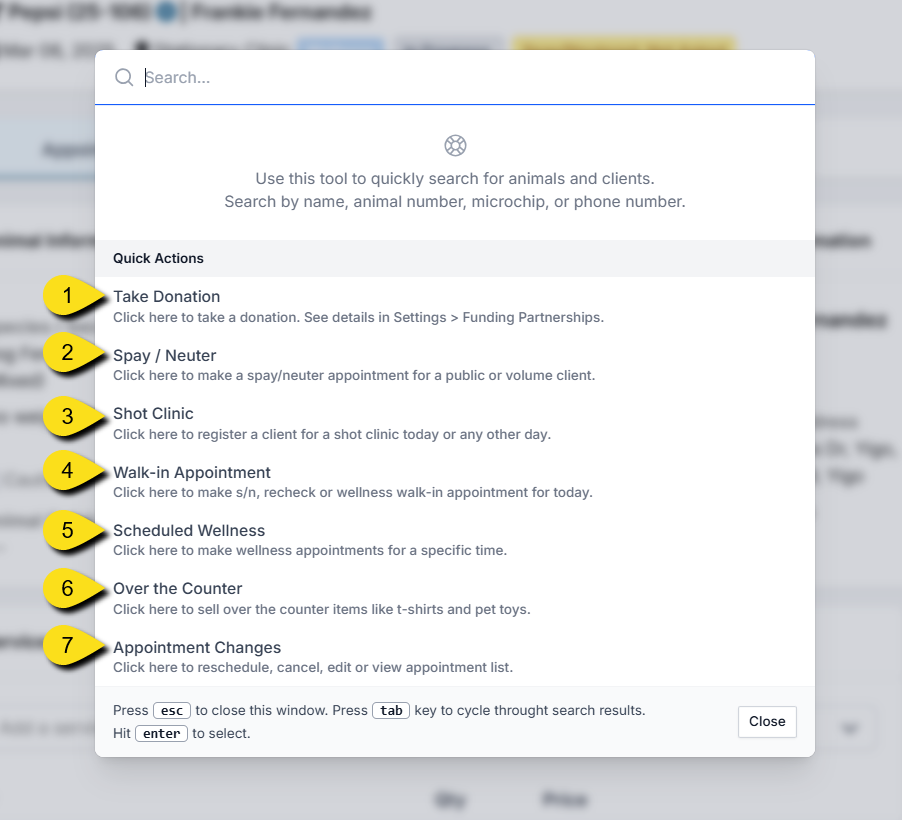
Quick Actions
- Take Donation: Quickly process a donation. (Requires a donation pot to be set up in Funding Partnerships.)
- Spay/Neuter: Opens the Spay/Neuter Calendar to schedule surgery appointments.
- Shot Clinic: A starting point for logging clients during a vaccine/shot clinic. Allows you to check if the client or animal has been seen before and create a new appointment. (Often used for walk-ins, though scheduled wellness features are recommended for better management.)
- Walk-In Appointment: Flexible tool for starting any type of appointment (spay/neuter or wellness) when clients arrive without a scheduled time. ( Scheduled Wellness: Assign specific time slots to wellness appointments (e.g., a dental at 1:00 PM).
- Over the Counter: Log sales of items like T-shirts or e-collars that don’t require client/patient records. The transaction is captured in end-of-day reconciliation.
- Appointment Changes: Access tools to reschedule, cancel, or delete appointments.
Special Case: Scheduled Spay/Neuter
If your clinic uses time-based spay/neuter scheduling, an extra shortcut— Scheduled Spay/Neuter —will appear. This is for the rare clinic that assigns exact times (e.g., 9:00 AM, 10:00 AM, etc.) instead of check-in windows.
- If you don’t see this option, it means the feature is not enabled in your clinic’s settings.