Making Wellness Appointments
6.2. Wellness Appts Online (E-Appointments)

Like spay/neuter appointments, wellness appointments can also be scheduled online by public clients.
The e-appointment form allows clients to:
- Select the type of appointment.
- Choose an available time.
- Provide client and animal details in advance.
This saves staff time and streamlines the process. For details on how the online scheduler works, see the Online Appointment Scheduler section of this manual.
Enabling Wellness Appointment Types
- Verify that all wellness appointment types are created.
- Open your wellness rooms (see Wellness Settings guide).
- Go to Settings > E-Appointments.
- Enable the appointment types for online scheduling.
- Test your form:
- Click Preview in New Tab under your e-appointment link.
- If appointments don’t appear, ensure: ** The Spay/Neuter Calendar is open. ** Wellness Calendar rooms are open. ** Appointment types are enabled.
✅ Pro Tip: Wellness rooms only stay open if the Spay/Neuter Calendar is also open. If you aren’t performing spay/neuter that day, set capacities to zero by selecting Adjust Capacity for Today Only.
What Clients See in the E-Form
- Choose appointment type.
- Select animal type and available date.
- Enter client and animal information.
- Select services (if enabled).
- Provide payment if required (deposit or online payment).
- Submit appointment by clicking Request Appointment.
Clients then see a pop-up confirming their request is pending and receive an email notification.
Confirming an E-Appointment
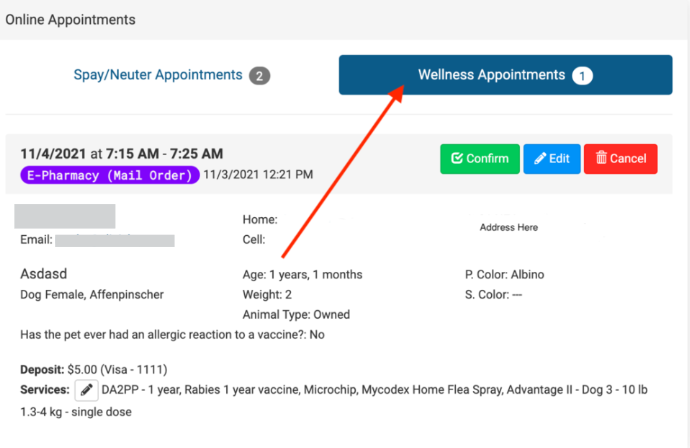
- Click the green E-Apps button (top left of calendar) or go to Online Appointments in the navigation menu.
- Open the Wellness Appointments tab.
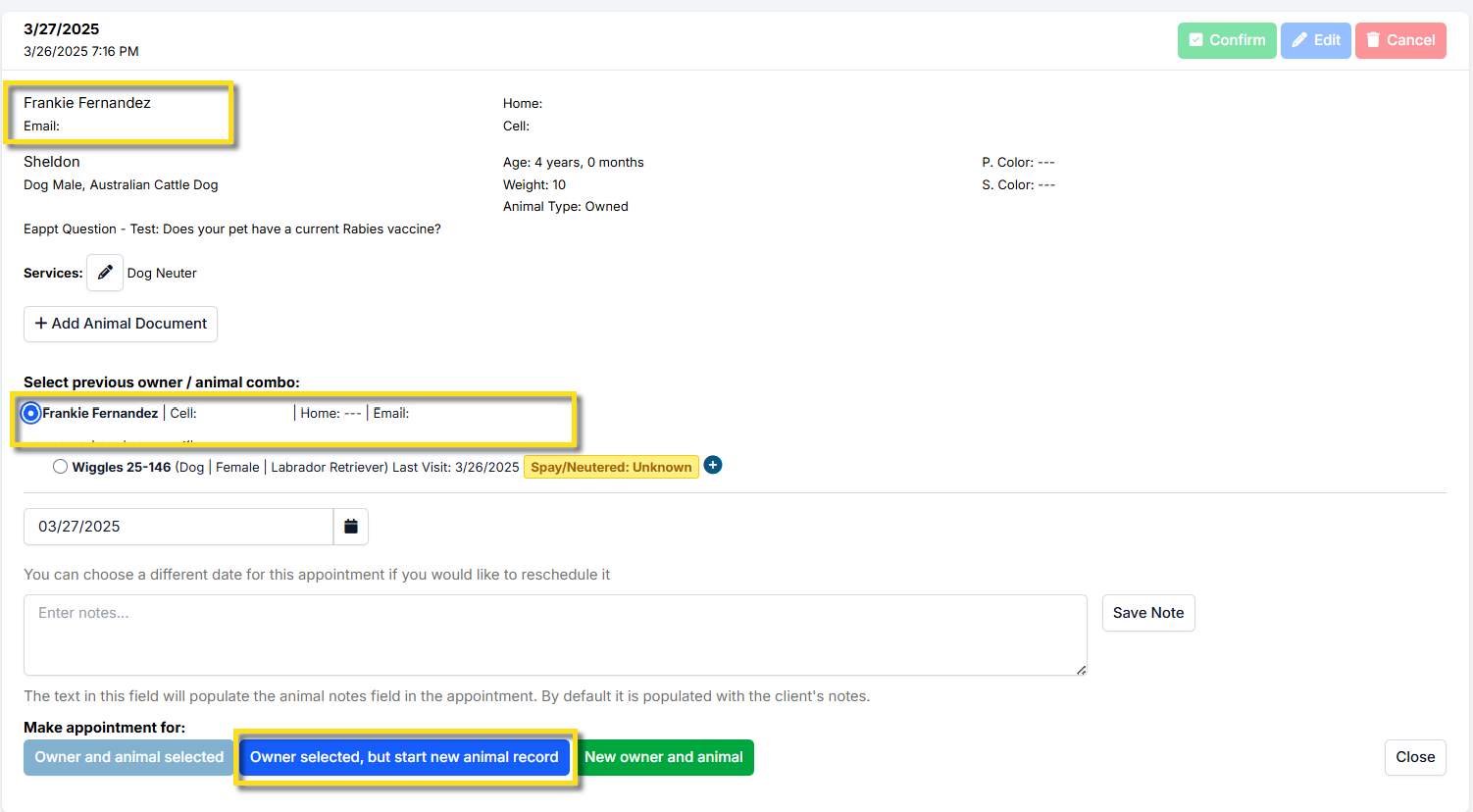
- Click Confirm for the appointment.
- If the client already exists in HQ, select their profile.
- If the animal is new, use Owner selected but start new animal record.
Once confirmed, the client automatically receives your clinic’s confirmation email.
Editing Services While Confirming
Use the pencil edit tool to:
- Remove inappropriate items (e.g., rabies vaccine selected for too young a puppy).
- Add requested items from notes that weren’t selected on the form.
Timing Rules
- Online requests close at midnight in your time zone.
- Same-day requests are not available —only future dates appear online.
- To adjust how far out clients can book: ** Go to Settings > E-Appointments > Edit > Number of months to book in the future.
Adding or Restricting Services
In Settings > E-Appointments, you can:
- Restrict available services by appointment type (e.g., only vaccines for vaccine clinics).
- Require clients to select at least one service.
- Add item descriptions to make options clearer.
Key Differences: Spay/Neuter vs. Wellness
- Spay/Neuter appointments: Can include other add-on services.
- Wellness appointments: Cannot include spay or neuter as add-ons. ** If requested, you must cancel and recreate as a spay/neuter appointment with additional services attached.
Appointment Ideas
- Telemedicine: Create a wellness appointment type requiring a payment (e.g., Telemedicine Consultation). HQ does not currently support video calls directly.
- Food Pantry Pickups: Use HQ products (pre-loaded food bag sizes). Do not allow clients to select bags online. Instead, assign the correct size during confirmation so pantry staff know what to prepare.
- Mailed Preventatives (E-Pharmacy): Allow clients to choose flea/tick medications for mailing.