17.6.1.1. Animal Behavior Tags
Animal behavior tags are useful for communicating with staff an animal's temperament and behaviors. This section will guide you through setting up and utilizing these tags.
Tag Purpose
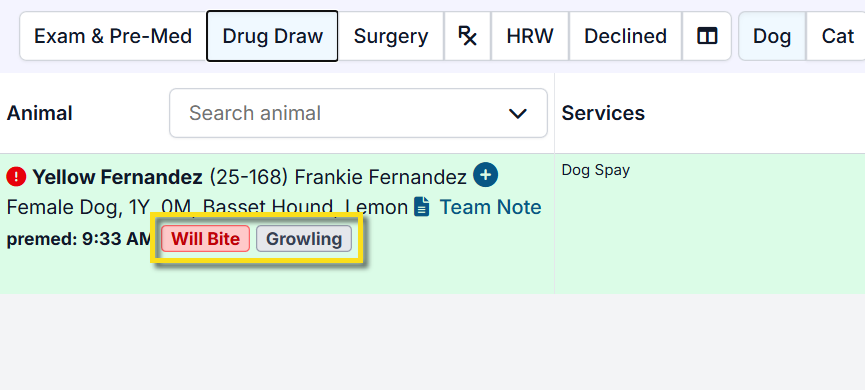
HQ allows behavior tags to follow a patient through their appointments and records. These tags include Fear, Anxiety, Stress (FAS) Scores 0-5. This feature also includes the tags 'Will Bite', 'Bite History', 'Growling', and 'Hissing.' Your staff is able to create your own tags as well. The behavior tags show all through Patient Flow, E-Lobby, and in the animal's medical history. They also show in the e-appointment queue if the animal is a returning patient to your clinic!
There are a few purposes for these tags:
- To make your flow run smoothly and make interactions with staff and patients safer.
- To reduce stress for patients who may already be stressed.
- AAHA Accreditation requires 'Behavior and Attitude' to be a part of the exam.
Adding Behavior Tags
To add Animal Behavior Tags to your clinic, go to Settings > Tags > Behavior > Load Default Tags
Once you click on 'Load Default Tags', you will see FAS 1-5, Bite History, Will Bite, Growling, and Hissing. All of the tags default to gray but you can change the color of each tag by clicking on the color dropdown menu next to each one.
Your clinic can also add your own behavior tags such as 'Head Shy', 'Go Slow' etc. To do so, enter the tag title in the 'Enter New Tag Name' textbox and click 'Add':
Please Note: There is a 10-character limit for these tags. If you would like to add something like Dog or Cat Reactive, you can abbreviate it to Cat React. or Dog React. Barrier Aggressive can be shortened to Barrier Ag, and so on.
To delete your behavior tags, simply click on the 'Delete' button next to the tag. If the tag is in use on a patient, you will not be able to delete it from your tags. The default tags can be added back to your clinic at any time by clicking on 'Load Default Tags.'
Adding Tags to a Patient
Tags can be updated in the following areas of HQ:
- Animal Information: You can tag behaviors when updating the Animal Information section of Checkout.
- Medical History: The Medical History popup is accessed by clicking the green or blue plus sign near an animal's name. To add or edit behavior tags, click Edit Behaviors at the top of the page.
- Patient Flow: Behavior tags can be update via Patient Flow in the Exam section.
- E-Lobby: To update behavior tags in E-lobby, click the Behaviors button on the patient's card.
Once you click on a tag, the tag will follow your patient all through patient flow, on their appointment screen, and in their medical history:
Related Resources
- AAHA Behavioral Guidelines HERE
You do not have to use the FAS Scores, but they are very handy for creating a universal understanding and scoring system of FAS in your patients.
- Here are some handouts you may want to provide your staff that define what these FAS Scores mean: FAS Spectrum Handouts
- Your clinic can become Fear-Free Certified by taking the Fear Free Shelters Course for free here: Fear Free Shelters